10 Essential Tips for Using a Touch Screen Monitor Effectively
In today's digital age, mastering the use of a touch screen monitor is essential. Renowned technology expert Dr. Jane Harper emphasizes, "The efficiency of touch screen monitors can transform user interaction." Her insights remind us that success lies in understanding the nuances of this technology.
Using a touch screen monitor goes beyond simple taps and swipes. It requires awareness of finger placement and response time. Frustrations can arise when the device does not respond as expected. Users often overlook the importance of regular screen calibration. This simple step enhances precision and efficiency.
Furthermore, many users neglect to explore advanced features. These can significantly improve the overall experience. For example, multitasking capabilities are often underused. Taking the time to learn and adapt can yield surprising results. Embracing the full potential of a touch screen monitor can lead to creative solutions and better productivity.
Understanding Touch Screen Technology Basics
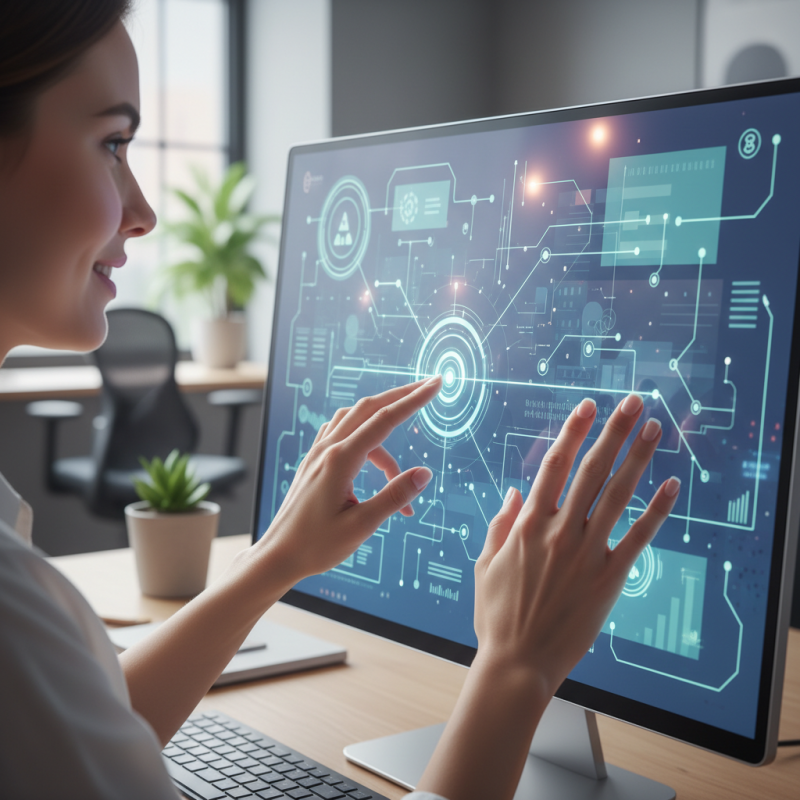
Touch screen technology has transformed how we interact with devices. It combines hardware and software to allow users to operate a monitor directly by touching the screen. According to a report by Statista, the global touch screen market is projected to reach over $100 billion by 2024. This growth reflects the increasing adoption of touch interfaces in various sectors.
Understanding the basics is essential for effective use. Capacitive and resistive are two common types of touch screens. Capacitive screens respond to the electrical properties of the human body, offering responsiveness. Meanwhile, resistive screens use pressure, which can be less intuitive but better suited for specific environments. Research shows that users often struggle with accuracy on resistive screens, indicating a potential drawback in certain applications.
Optimal usage involves understanding the screen’s capabilities. It is crucial to adapt your actions according to the touch response. For instance, users frequently experience frustration with gestures like pinch-to-zoom or swipe. These gestures can fail if the touch sensitivity is set incorrectly. Proper calibration is vital to enhance the user experience and reduce such issues. While touch screens offer convenience, it’s important to acknowledge the learning curve involved.
10 Essential Tips for Using a Touch Screen Monitor Effectively
| Tip # |
Tip Description |
Reasoning |
| 1 |
Clean Your Screen Regularly |
Dust and fingerprints can interfere with sensitivity and visibility. |
| 2 |
Use Appropriate Touch Techniques |
Light taps and swipes are more effective than pressing hard. |
| 3 |
Adjust Screen Brightness |
Proper brightness helps reduce glare and improves visibility. |
| 4 |
Keep Your Hands Dry |
Moisture can cause incorrect touch detection. |
| 5 |
Utilize Multi-Touch Gestures |
Multi-touch gestures can enhance productivity and ease of use. |
| 6 |
Set Up a Comfortable Working Position |
Avoid strain by ensuring proper screen height and distance. |
| 7 |
Take Breaks to Prevent Fatigue |
Regular breaks help maintain focus and reduce discomfort. |
| 8 |
Explore Accessibility Features |
Built-in features can assist users with different needs. |
| 9 |
Ensure Proper Software Compatibility |
Using compatible software can enhance functionality and performance. |
| 10 |
Stay Updated with Technology Advances |
New updates can improve performance and introduce new features. |
Choosing the Right Touch Screen Monitor for Your Needs
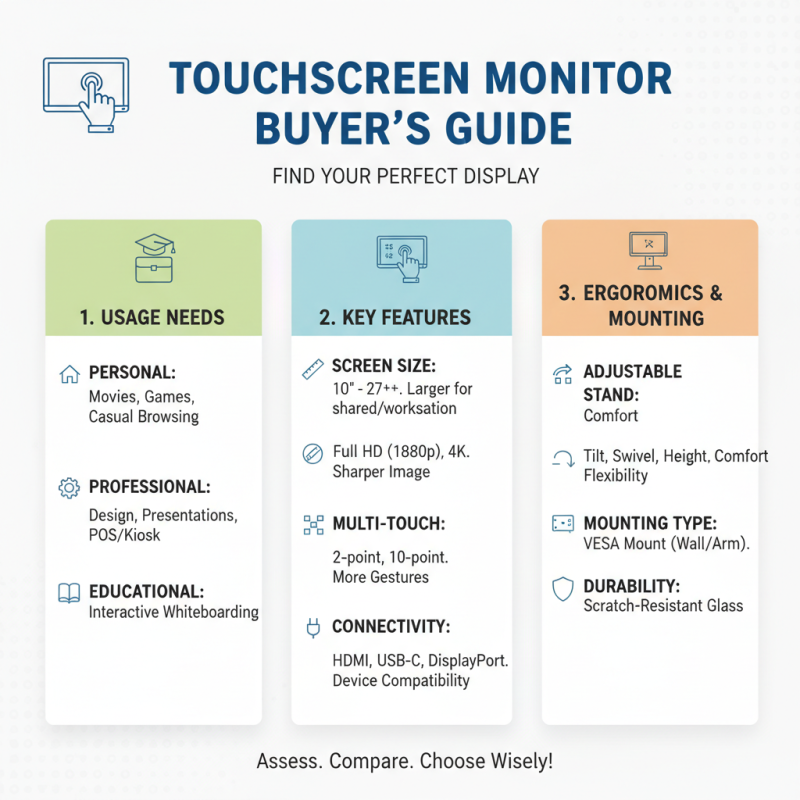
Choosing the right touch screen monitor can be daunting. There are many factors to consider. Start by assessing your usage needs. Will it be for personal, professional, or educational purposes? These questions guide your decision.
Screen size matters. Larger screens offer better visibility and facilitate collaboration. However, they require more space. If your workspace is limited, a smaller screen might fit better. Touch responsiveness is another critical aspect. A monitor with a quick response time improves user experience. Check reviews to find models that suit your preferences.
Consider the resolution as well. A higher resolution gives clearer images and text. However, it may come at a higher cost. Think about your budget too. Sometimes, you might compromise on features to stay within limits. It’s about finding the right balance between price and performance. Reflect on what features you truly need and don’t be swayed by trends. Choosing wisely can enhance your interaction with technology.
Calibration and Setup for Optimal Performance
Calibration is crucial for a touch screen monitor's performance. Accurate calibration ensures that touch inputs are registered correctly, enhancing user experience. According to a recent industry report, poorly calibrated screens can lead to a decrease in productivity by up to 30%. This is significant, especially in environments where precision is vital, like design or engineering fields.
Setting up your touch screen monitor properly matters. Make sure the monitor is at eye level. This can reduce strain and improve interaction. An ergonomic setup can enhance work efficiency. A study indicated that users often face discomfort when the screen height is not optimal. Simple adjustments can make a difference, even if they initially seem trivial.
Regular maintenance and recalibration should not be overlooked. Dust and dirt can affect the screen's responsiveness. An unclean monitor may lead to frustrations and mistakes. Taking time to maintain the device is essential. Neglecting this can result in a decline in touch accuracy. Users must often remind themselves to stay vigilant about their equipment's condition—this is where small details matter.
10 Essential Tips for Using a Touch Screen Monitor Effectively
Gestures and Techniques for Efficient Navigation
Navigating a touch screen monitor effectively requires understanding gestures and techniques. Users often overlook the potential of simple movements. According to industry reports, around 70% of users do not utilize gestures optimally, leading to slower navigation. Mastering these gestures can enhance efficiency and improve user experience.
Tap and swipe are the foundation of touch screen navigation. Tapping allows for precise selection. A gentle swipe lets you scroll through content seamlessly. Using two fingers for zoom can transform how you interact with images and maps. Don’t hesitate to practice these simple actions to improve your skills. Remember, becoming familiar with gestures takes time.
Dragging and long-pressing are often underutilized. Dragging can help with rearranging items. Long-pressing provides access to additional options. These may seem trivial but can dramatically impact productivity. Observe how these techniques can simplify tasks. Still, consider your comfort level with each gesture. Reflection on your usage patterns can reveal areas for improvement.
Isn’t it important to ensure you’re making the most of your device?
Maintenance and Care for Longevity and Functionality
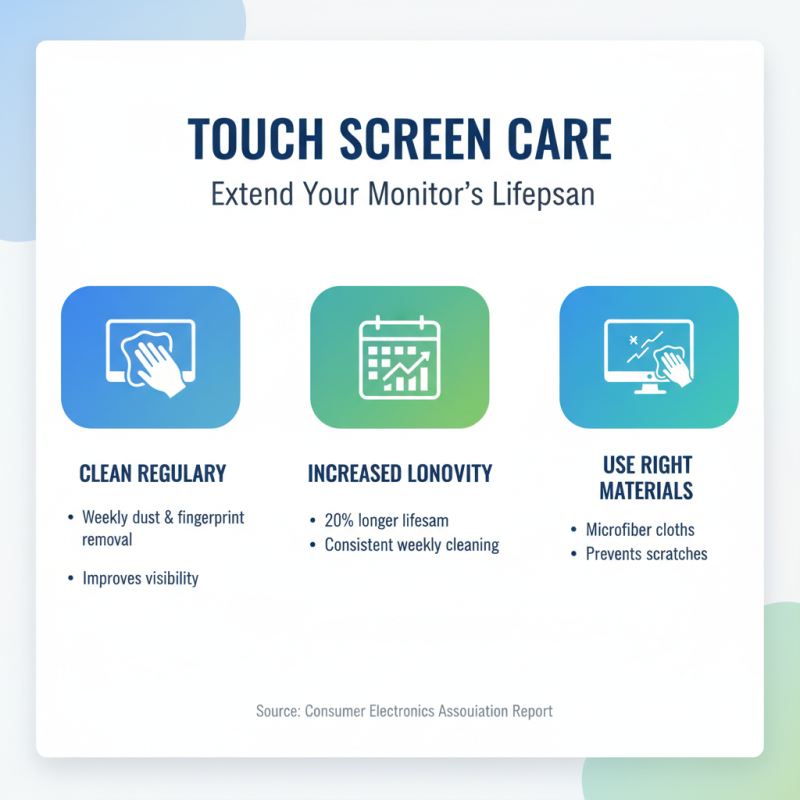
Maintaining a touch screen monitor is crucial for longevity and optimal functionality. Regular cleaning can prevent the accumulation of dust and fingerprints that impair visibility. According to a report from the Consumer Electronics Association, screens that are cleaned properly every week can last up to 20% longer than those that are not maintained. Using appropriate cleaning materials, like microfiber cloths, helps in avoiding scratches.
Another important aspect is avoiding overexposure to direct sunlight. Prolonged exposure can cause screen damage and color fading. Studies indicate that screens left in direct sunlight can lose up to 30% of their brightness within a year. Furthermore, keeping the monitor’s firmware updated ensures that it functions at peak performance. Ignoring updates can lead to lingering bugs and a less responsive touch interface.
It's easy to overlook the surrounding environment. Humidity and temperature extremes can affect screen responsiveness. A controlled environment is ideal. The ideal operating temperature for most touch screens is between 50°F and 95°F (10°C to 35°C). Regular checks can help identify potential issues before they become serious. Sometimes, neglecting these factors can lead to frustrating user experiences. Regular maintenance isn't just a recommendation; it’s essential for performance.



















 Screen Size Calculator